Showing posts with label Review. Show all posts

FlightGear a Flight Simulator


    Founded in 1997, FlightGear is developed by a worldwide group of volunteers, brought together by a shared ambition to create the most realistic flight simulator possible that is free to use, modify and distribute. FlightGear is used all over the world by desktop flight simulator enthusiasts, for University research and education, for a variety of aerospace engineering and visualization work in industry, and even for interactive exhibits in museums.


    FlightGear features more than 400 aircraft, a worldwide seamless scenery database, a multi-player environment, detailed sky modelling, a flexible and open aircraft modelling system, varied networking options, multiple display support, a powerful scripting language, and an open architecture. Best of all, being open-source, the simulator is owned by the community and everyone is encouraged to contribute.


    Have heard that with the right equipment playing the FlightGear simulator could be used as pilot hours towards a pilots license. The features available in this open source project are amazing, not to mention just the scenerey would fill more then 3 DVDs. Check out the feature list at http://www.flightgear.org/about/features/

Start downloading FlightGear for free on Windows, Mac, & Linux from http://www.flightgear.org

Watch FlightGear in action


Mixxx - DJ Software Review


    Mixxx has everything you need to start making DJ mixes in a tight, integrated package. Whether you're DJing your next house party, spinning at a club, or broadcasting as a radio DJ, Mixxx has what you need to do it right.

    Best of all it's Open Source, free and available for Windows, Mac, and Linux!

Here is a quick 5 minute review of Mixxx by InfinityGalatic (who's been doing Linux App reviews on youtube). He is using the Ubuntu Linux Operating System which is also free and Open Source.


Links:
Download: Mixxx DJ Software http://www.mixxx.org
Download: Ubuntu Linux http://www.ubuntu.com

KDE vs Gnome 3 vs Unity

    Even though the terminal is where all the action is at, the GUI is what the majority of users deal with to interact with the PC and makes a big impact on how they use their PC. KDE and Gnome are the default choices most Linux distributions offer, while Unity is only on Ubuntu. A couple lesser known GUIs are XFCE and LXDE which are great for lower end, older systems. For example an install of Linux Mint LXDE on machines with half a gig of ram runs the machines run pretty darn well, and functions in a way that windows converts can handle without blowing their mind during the transition.

    When it comes to my desktop/workstation KDE is the option that I've decided to stick with, while on my laptop I've gone with Ubuntu's Unity. Tried using Gnome 3 with the Mint Gnome Shell Extentions, but just didn't like the interface. The Mint Gnome Shell Extensions provide a familiar feel to a new piece of software. Having two launchers seemed cluttered, not to mention couldn't adjust the properties to either bars. Just wanted them to auto-hide but couldn't tell them to. Also it seemed unorganized how it creates new virtual desktops on the fly, I prefer the four virtual desktops in a 2x2 grid pattern like in Unity. KDE approaches this differently in what is called activities. Instead of switching between virtual desktops the activity is more of a toggle, you set up the desktop the way you like it for a certain task, like video editing then save it as an activity. Then you would just choose the activity that you want to do and all the apps and windows will open. The activities do allot more then just remember what applications are open though, will save that topic for another post though. ( How to use KDE Activities)

 Here is a List of GUIs on the wikipedia, some of them are no longer active though.

    Like the rest of the Open Source desktop environments KDE is much more then a way to use the mouse to click an icon and launch an application, providing file managers, simple tools like a calculator and an interface to change the settings of the PC. KDE goes even further then most, not just with the amount of applications it provides but sheer amount of features and the way they are so perfectly integrated into the system is unrivaled. On top of all the features are the options, there are tons of them and they are easy to find, but not in a way that makes the system feel cluttered. In fact it the is very clean.

    While I like Ubuntu with Unity and the direction their heading, it just isn't the way I interact with a desktop with multiple screens. It's perfect on a laptop though, and will make a nice addition to the market space when Unity appears in televisions and android phones. Unity is also pretty easy to use as Ubuntu has been the Linux system that takes pride in ease of use and setup. Although with ease of use and taking away some of the options and simplifying things users lack the knowledge to fix or work around things that break. On top of that some of the ways that they make the system easier to use feels less safe from a security standpoint. First of all the installations are pretty standard among the install base, and as it becomes more popular it will become a bigger target that'll effect a bigger group, like the users with out of date packages. This shouldn't be a problem as Linux is pretty secure from the ground up, and gets security patches, updates, and bug fixes more often then the competition, but it's up to the user to perform those updates.


This video (not by me) shows the new features of KDE 4.8, but is gets no where near all of the awesome features of KDE. It will provide a good look into the KDE desktop environment though.


This is a video of the Unity interface from Ubuntu. This desktop environment is on its' way to your phone and television, and will be a nice change.


Love Linux Mint, just not a fan of Gnome 3, even with the MGSE (Mint Gnome Shell Extensions) Gnome 3 just wasn't for this user. This is a review of Linux Mint 12 that covers the MGSE (not by me)


What are your thoughts? Leave a comment and share them.

Screenwriting Software

    Screenwriting software helps the user with creating, and organizing projects which can include but are not limited to screenplays, films, videos, stageplays, audio plays, documentaries, machinima, comics, games and podcasts.
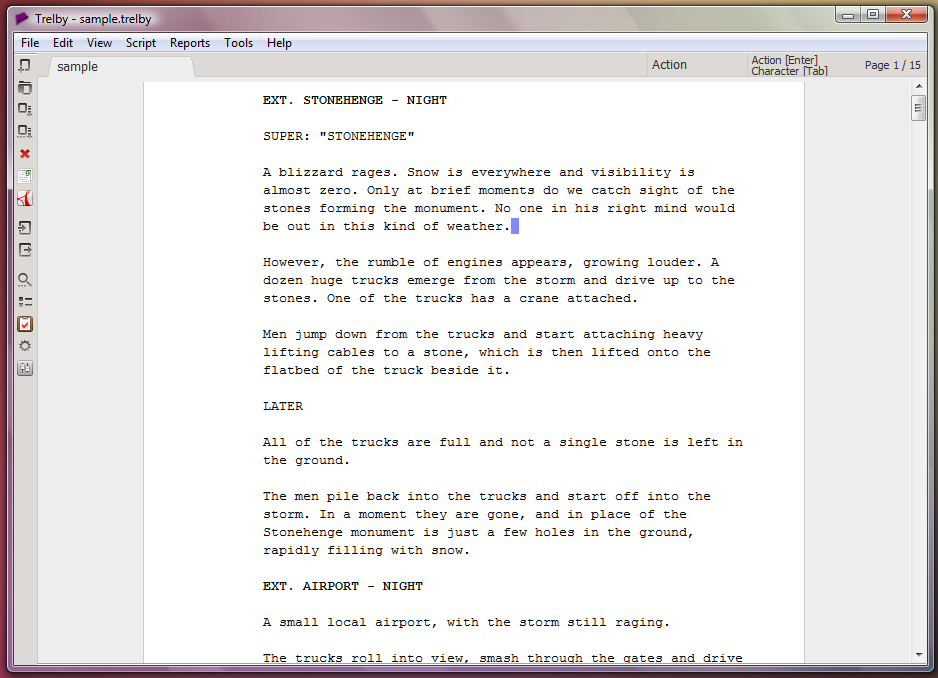
  One of the best open source screenwriting programs would have to be Trelby. Trelby focuses on providing a simple, uncluttered interface to writing screenplays. It is a rebranding of an older screenwriting program called Blyte. It currently runs on the Windows and Linux platforms, with a Mac OS X port in the works.

    Blyte was a commercial screenwriting program written by Osku Salerma in 2003, and was maintained as such until 2006, then the code was open sourced under the GPL license and not found until 2011.

Features of Trelby


  • Screenplay editor: Enforces correct script format and pagination, auto-completion, and spell checking.
  • Multiplatform : Behaves identically on all platforms, generating the exact same output.
  • Choice of view: Multiple views, including draft view, WYSIWYG mode, and fullscreen to suit your writing style.
  • Name database: Character name database containing over 200,000 names from various countries.
  • Reporting: Scene/location/character/dialogue reports.
  • Compare: Ability to compare scripts, so you know what changed between versions.
  • Import: Formatted text, Final Draft XML (.fdx).
  • Export: PDF, formatted text, HTML, RTF, Final Draft XML (.fdx).
  • PDF: Built-in, highly configurable PDF generator. Supports embedding your chosen font.
    Another piece of open source screenwriting software is Celtx. Celtx helps you produce all types of media  film, video, documentary, theatre, novels, machinima, comics, advertising, video games, music video, radio, podcasts, and however else you choose to tell your story.

Celtx includes five dedicated industry standard editors for writing:
  • Screenplay
  • Stageplay - International and US standard
  • AV scripts - including documentaries, music videos and advertising.
  • Audio Play - including radio plays and podcasts.
  • Comic Book
Novel

   Celtx is a great program with a good wiki, and is a good example of a profitable open source model. The code, program, and tutorials are free but Celtx offers a service worth paying for that doesn't effect the use of the program if a user doesn't pay. The payment is for online sharing and storage features.

    Celtx offers a web service called Celtx Studios for advanced project collaboration and online file storage. Celtx Studios provides users with a way to work with others online in a simple way and improve the collaboration and workflow process.
  • Share projects quickly and easily.
  • Store every project, every version, and every file.
  • Manage team workflow.
  • Sync scripts with your iPad/iPhone.
  • Access projects from any computer.
  • Privately preview projects on the web.
  • Chat online with other Studio members.
  • Personalize your studio with logos and backgrounds.
  • Celtx Studios are priced to be affordable for everyone - including individuals, production teams, schools, and non-profits.


    As this article is about screenwriting software, Trelby would have to be the best choice. For those that are not writing a play or novel Celtx is great for  all sorts of multimedia projects and would recommend it to anyone that is creative, it is a good program for keeping your thoughts organized.

Ubuntu Unity Not So Bad

    All across the web people are downing Ubuntu's new UI called Unity. They go as far as to say it's the worst thing ever, and other harsh words I'd rather not repeat. I Honestly think it's not bad at all, in fact I actually like it.

    Got to keep in mind that Ubuntu isn't aimed at power users but at everyone, and it shows. In the application finder it shows what apps you use the most, ones that are installed, and suggests new one that are available to download in a couple clicks. I can see why old Ubuntu and Linux users are upset, the applications launcher used to be really organized and quick to get what I was looking for, but with Unity if you know the name off the application you're trying to launch it is super fast to press the window button, and start typing the name of program, then select it.


Ubuntu's developers put allot of thought into Unity. They must have considered that most people have widescreen monitors, and as such the best place to put the launcher bar is on the side, and I agree with it goes good right there. I get the most screen real estate with Unity from the launcher being on the side and auto hiding to the window management. The window management is like a OSx in the way the to option like File, Edit, Help are on the top title bar all the time.

A brief feature walkthrough of Unity


    Any who, with Ubuntu's Unity, you either love it or hate it, although I'd say I like it, but not ready to commit to loving it quite yet.